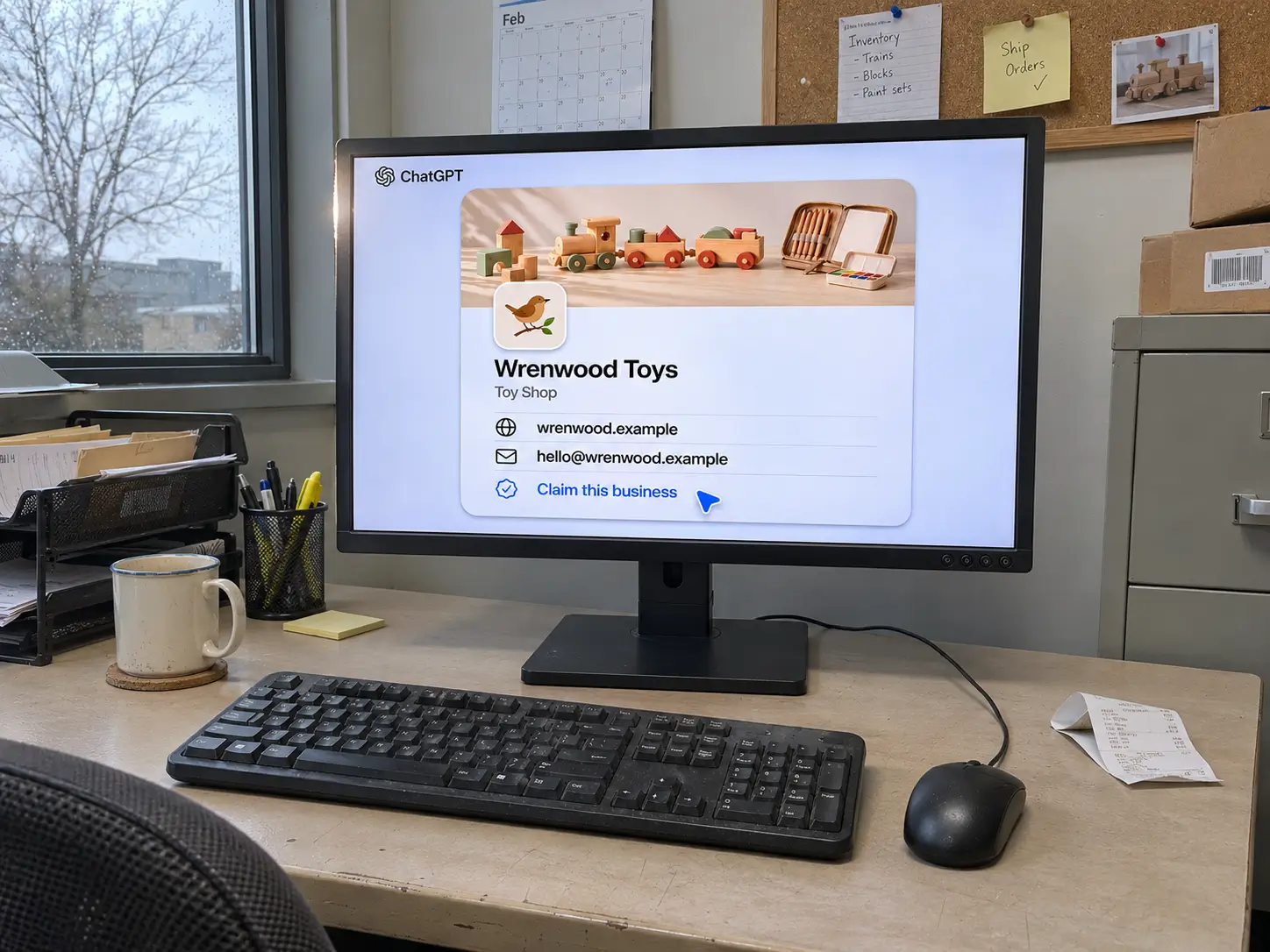



Imagine you run a bike repair shop. It’s Friday afternoon, you’re halfway through a repair, and a customer finds you on Google. They have one question: “If I bring my bike in today, could I pick it up tomorrow?” A message lets them ask while you’re busy and gives you a chance to reply when you put down your tools.
On an eligible Google Business Profile, you can connect a number for text messages or a WhatsApp chat link. Some profiles, including ours at NeaVizion, also offer Facebook Messenger in the settings. The useful question is: when someone finds your business on Google Search or Maps, which button do they actually see, and who gets the message?
What happened when we tried it in Skopje?
We opened NeaVizion’s listing in Google Search on an Android phone. Under our office photos, between Directions and Share, was a blue button labelled Text. It was the only messaging option we saw. We tapped it and successfully sent an RCS message.
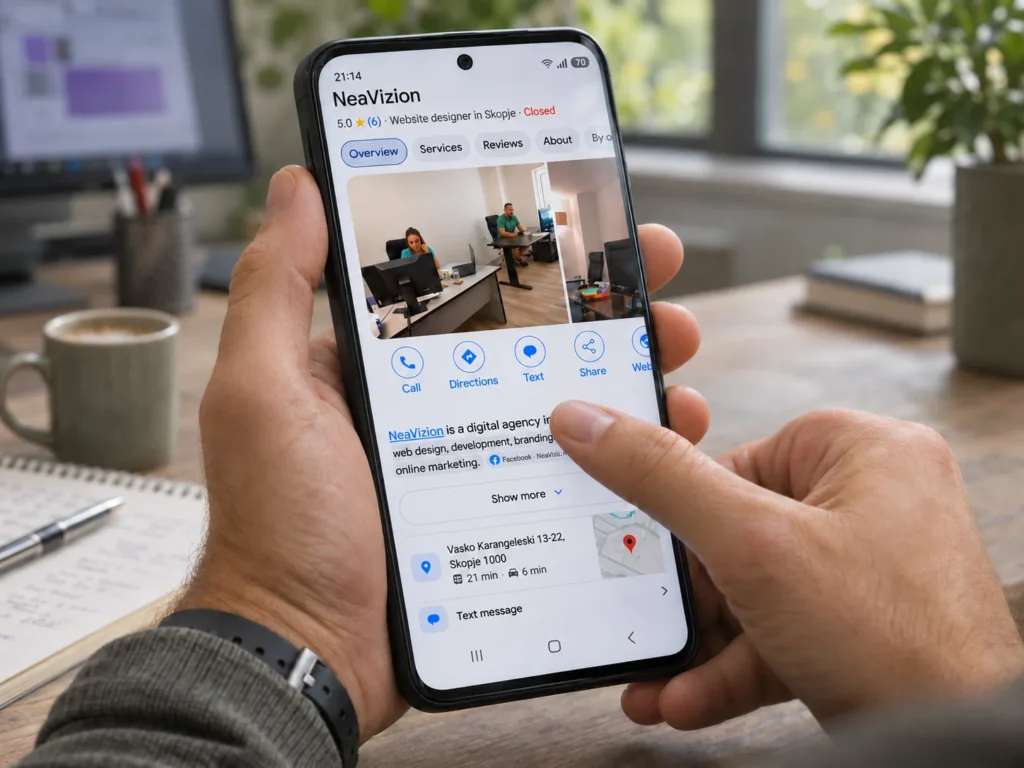
Illustration based on NeaVizion’s Google listing in Skopje. Look for the blue speech bubble labelled Text.
Is RCS the new name for SMS? No. SMS is the traditional way to send a text over a mobile network. RCS (Rich Communication Services) sends messages over Wi-Fi or mobile data when both sides support it and have it enabled. On our listing, the button still said Text; it was the messaging app that used RCS. You don’t need to look for a separate RCS button in your profile. Google explains the difference here.
What changed on Google Maps?
Messaging was already available through Google Search. In its November 2026 small business update, Google said it had made the Message button easier to find on eligible listings in the Android and iPhone Maps apps by putting it beside Call. That’s the Maps update. Our own example above shows how the option appeared in Search.
How to add a messaging option to your Google listing
- Sign in with the Google account that manages your claimed and verified Business Profile.
- Open Edit profile → Contact, then edit Chat. Availability varies by profile and region.
- Choose the channel your team checks during opening hours. For Text message, enter a number that receives texts. For WhatsApp, enter your click-to-chat link. If your menu offers Facebook Messenger, enter your business Page’s Messenger link, such as
https://m.me/neavizionfor our agency. - Save the change. Once it appears, ask someone to find the listing on their phone, send a test enquiry and check that they receive your reply.
Want enquiries to arrive on WhatsApp? Google’s chat setup guide says that if you add both WhatsApp and a text number, only the text option is shown. That guidance covers those two channels. Facebook Messenger has also appeared in the Chat menu, but seeing it in your settings doesn’t mean customers will see three buttons. Check the listing as a visitor before telling customers where to tap.
Who answers the first question?
For the bike shop, a useful reply might be: “Yes, bring it in before four. What kind of brakes do you have?” That short answer gives the customer a reason to visit. Pick the inbox where someone can give that answer, and agree who covers it on their day off.

Riste P.
NeaVizion team
A check we recommend
Ask a colleague to find your business on their phone and send a simple question, such as “Do you have an appointment on Saturday?” Let the person who normally handles enquiries reply. Then check the customer’s phone: did the answer arrive, and would they know what to do next?
Want us to check where your enquiries go?
Send our team your Google Maps listing and tell us who usually answers new enquiries. We can help you check what customers see, where their messages land and how to follow up when you’re busy.

Prefer to talk? Schedule a call with Martin.